
Storyboard links are extremely helpful when trying to link one page to another page, passing filters between pages.
For example, in this video below, a user is using Storyboard links to filter on district id and filter the results of each link based on an individual district’s records.
In order to make your own Storyboard links, there are just a few quick steps.
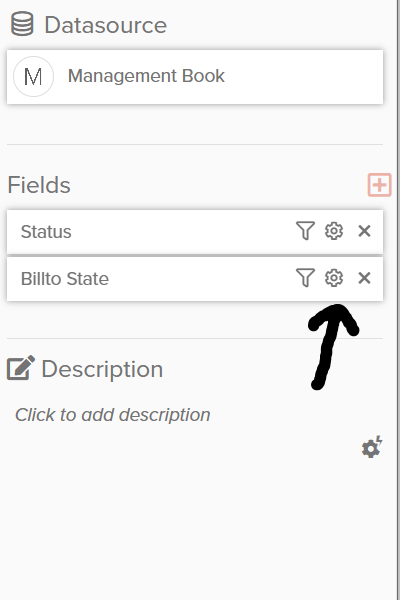
After adding a table, click the gear icon for a specified measure or group by field.
Next, go to another tab within the storyboard and make a few visuals as well as a filter drop-down:
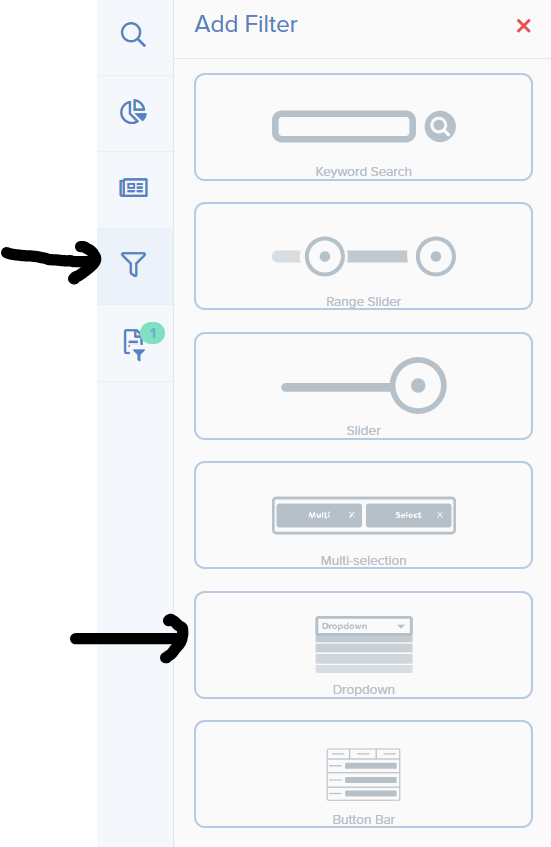
Two important settings to pay attention to when using the dropdown filter include the “required” toggle and ESPECIALLY the “link other datasets” toggle.
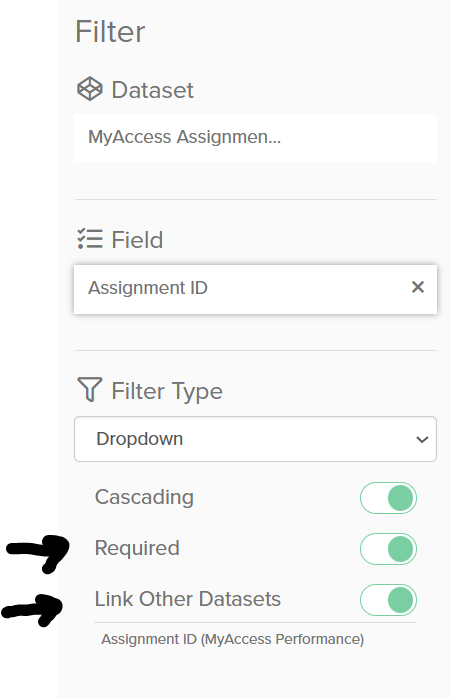
You will want to make sure that this link other datasets toggle shows the datasets you hope to join in this shared filter (excluding the dataset already used for the filter itself)
If the link other datasets toggle is not showing all necessary datasets, make sure you have already added the necessary visuals with the datasets BEFORE toggling on the link other datasets toggle. Try toggling it on and off again.
Below is an example of two storyboards using different data sources, but share the same district name field (which is what is being filtered on via the storyboard link)
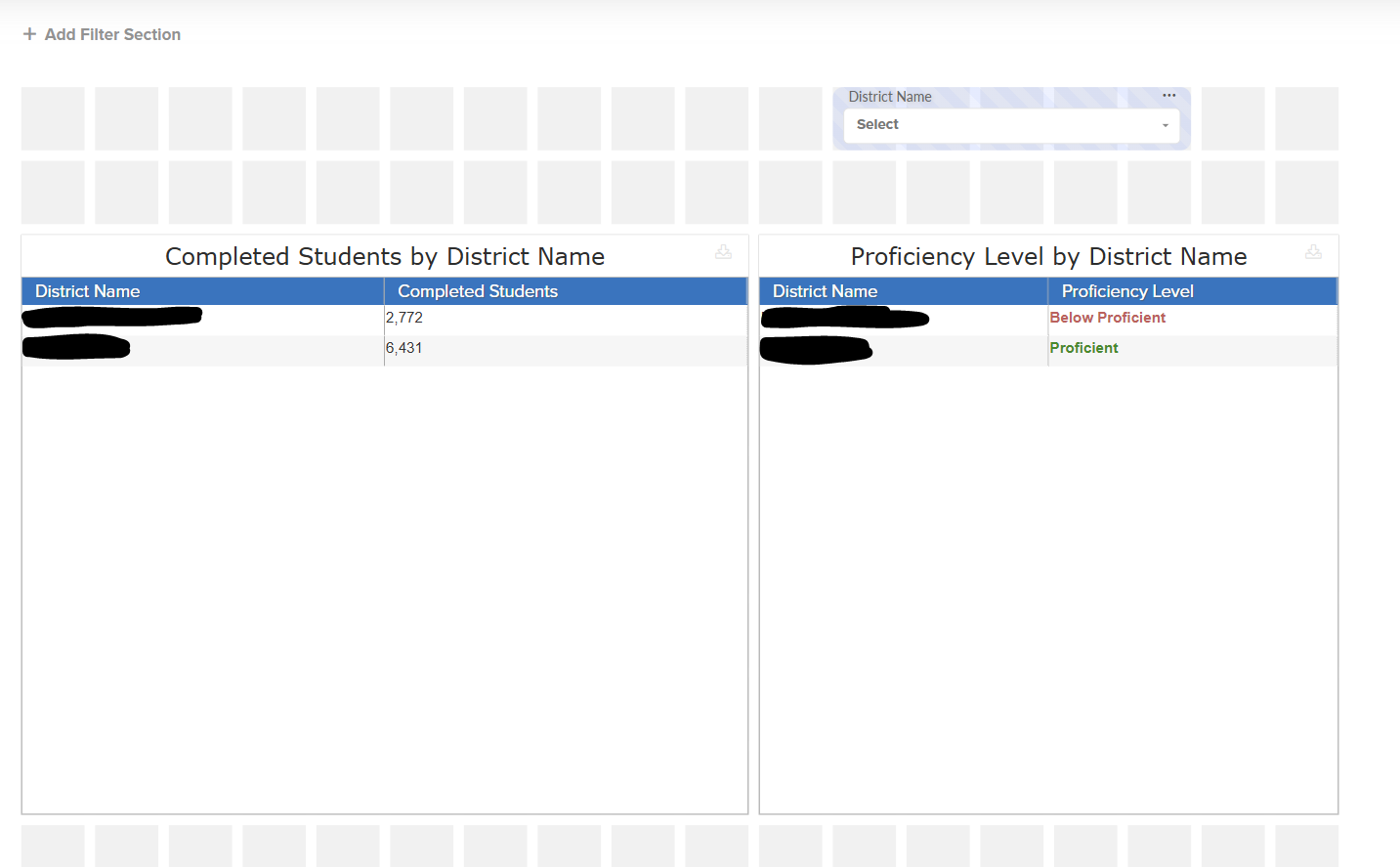
Now return to your first tab and finish adding the storyboard link. Make sure to toggle the filter on that you added in the second tab (ex: District ID) and click “apply”
If you have any questions or encounter any problems, please contact: support-nucleus@vantage.com